• Skip to primary navigation
  • Skip to content
  • Skip to primary sidebar
Graphic Design For Bloggers

Hatch Design Workshop

Graphic Design For Bloggers

  • Start Here – Topics
  • Custom Logo Design
  • My Shop
  • Contact

Free Tools and Resources – Graphic Design For Beginners

Topics: Graphic Design Tips

Graphic Design Free Resources

If you are just starting out and want to learn graphic design, then these free resources will help you get started. It is good to start with free resources and save money, and then move onto more premium and paid tools once you have learned how to use the different graphic design programs.

1. For Photographs

Unsplash – This is the resource I probably use the most even today. And it is completely free to use. It is a stock website, with great looking photographs. And you can use any of the images for pretty much anything you want. To create blog post images, to create product preview images, for social media posts. The only thing you cannot do is sell them, or include them inside products you sell (but you can create a list of links to different images on Unsplash for buyers to use).
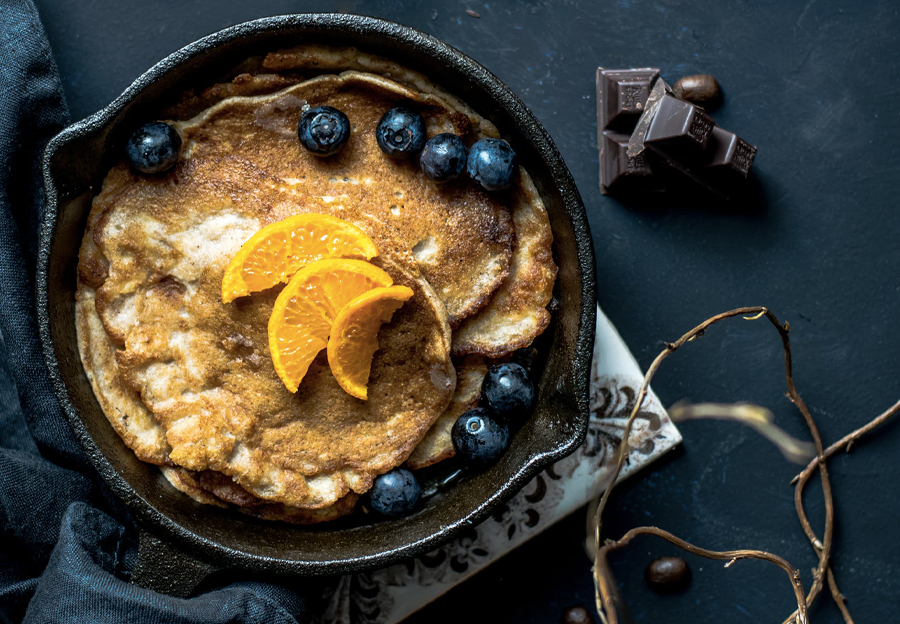

Free Stock Image Food Blog

Examples of photos on Unsplash that are free to use

2. For Fonts

Behance: So you have Unsplash for photographs, and now when it comes to fonts – I would check out Behance. Behance is a portfolio website for designers, and a lot of designers have free fonts that you can use. Use the search in Behance to look for “Free Fonts”. You do have to look to see if they are free to use for both personal and commercial. Some let you use them for personal work, but then require you to pay for commercial use.

Here are some great fonts to get started that are free for both personal and commercial usage:

Aqua Grotesque Typeface

Aqua Grotesque Font

–

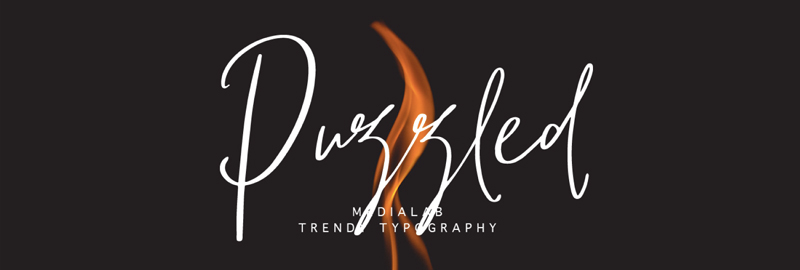
Puzzled Script Font

Puzzled Script Font

–

Font Squirrel: This is where I would go to a lot when I started doing graphic design. This website has a lot of fonts for free commercial use. Not all are the best looking – but it is a good place to get started.

Here are a few that I have used often:
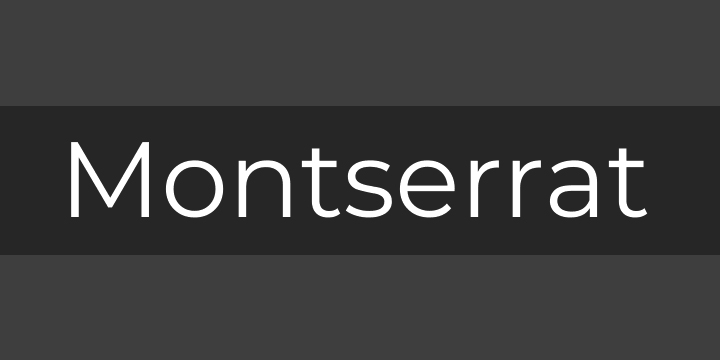
Montserrat

Montserrat Font Free Font

–

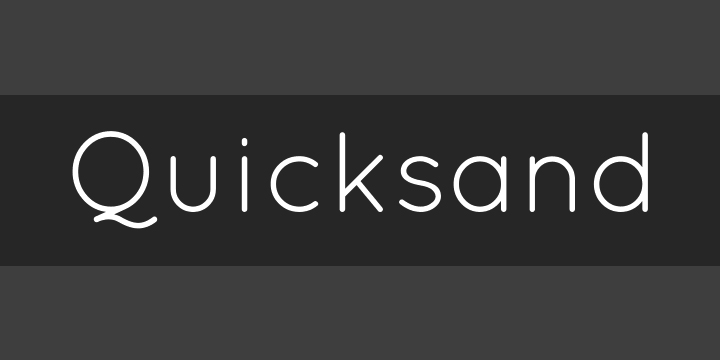
Quicksand

Quicksand Font Free Font

–

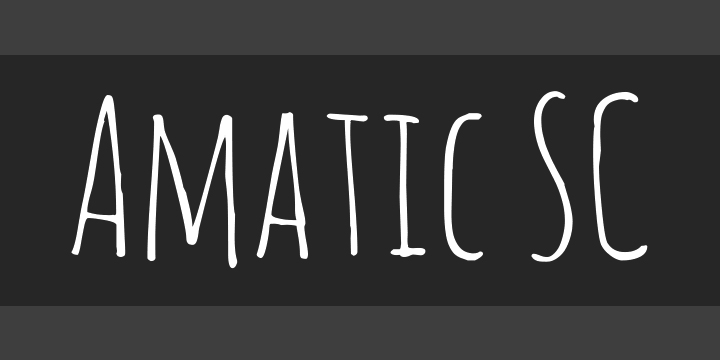
Amatic

Amatic Font Free Font

–

Creative Market: If a friend were to ask me what would be the best way to learn how to use fonts, I would say go to Creative Market and buy logo template packs. Yes, you do have to buy the logo packs (which includes graphics – for $16-25++), but 95% of these packs use free to use fonts for the logo designs (read the product descriptions). And the (great) designers have paired them with other free fonts – creating a well designed layout.

So not only do you get a list of great looking free fonts, but you will know what fonts pair well together.

Here are some examples:

My own Hand Drawn Logo Templates
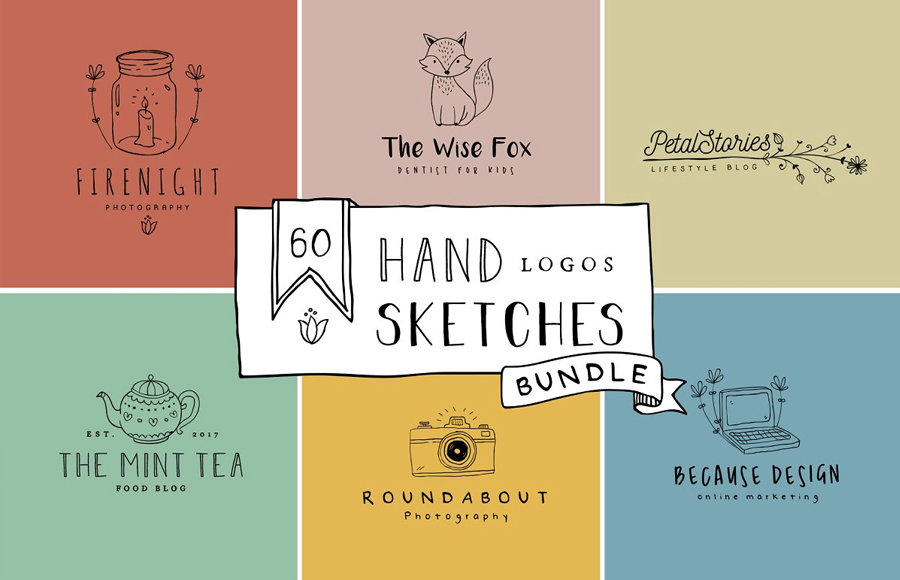
Hand Drawn Logo Templates

–

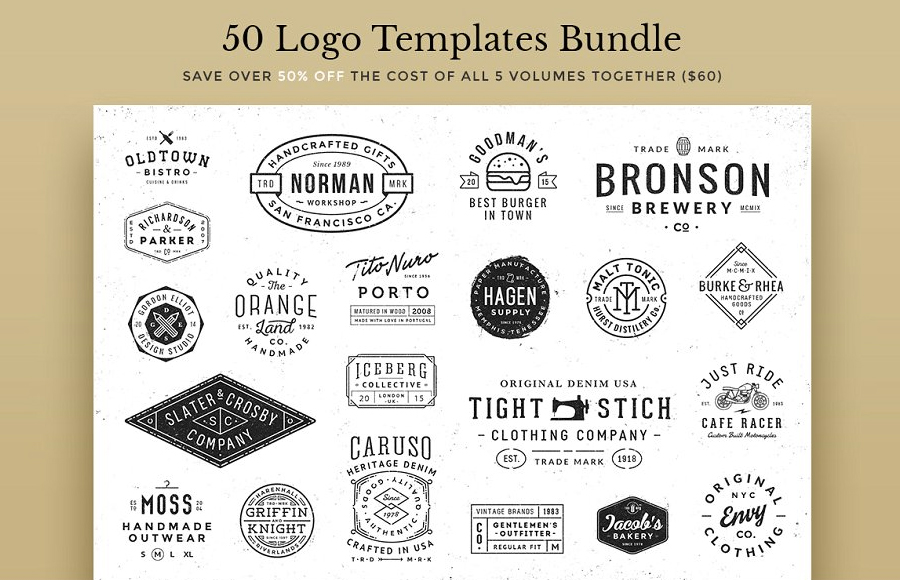
Vintage Logo Templates Bundle

–

3. For Graphics (Icons, Mockups, Backgrounds, etc)

Graphic Burger: This website has a lot of free graphics for commercial use. They have icons, and backgrounds. But what I use to go there for, were for their mockups.

For example, you designed a graphic and want to have a photo with your graphic on a t-shirt – then Graphic Burger has a number of t-shirt mockups that are free to download.
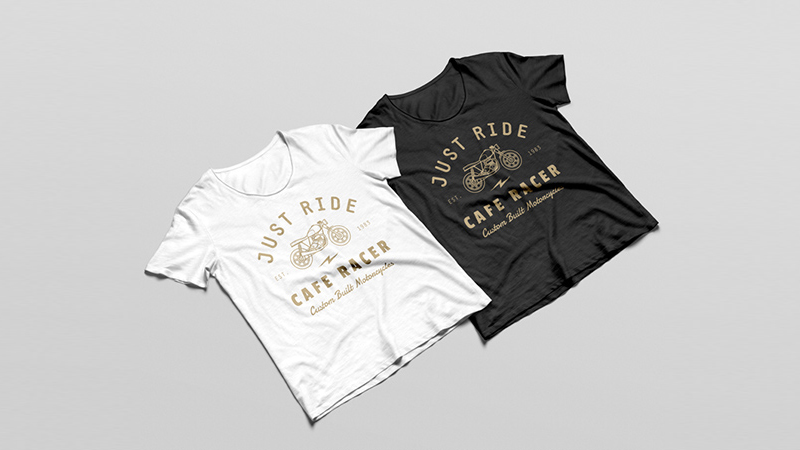
Free T-Shirt Mockup Design

Free T shirt Mockup Design

–

You can find all sorts of other mockups from business cards, bottles, to yoga pants and iPhones.
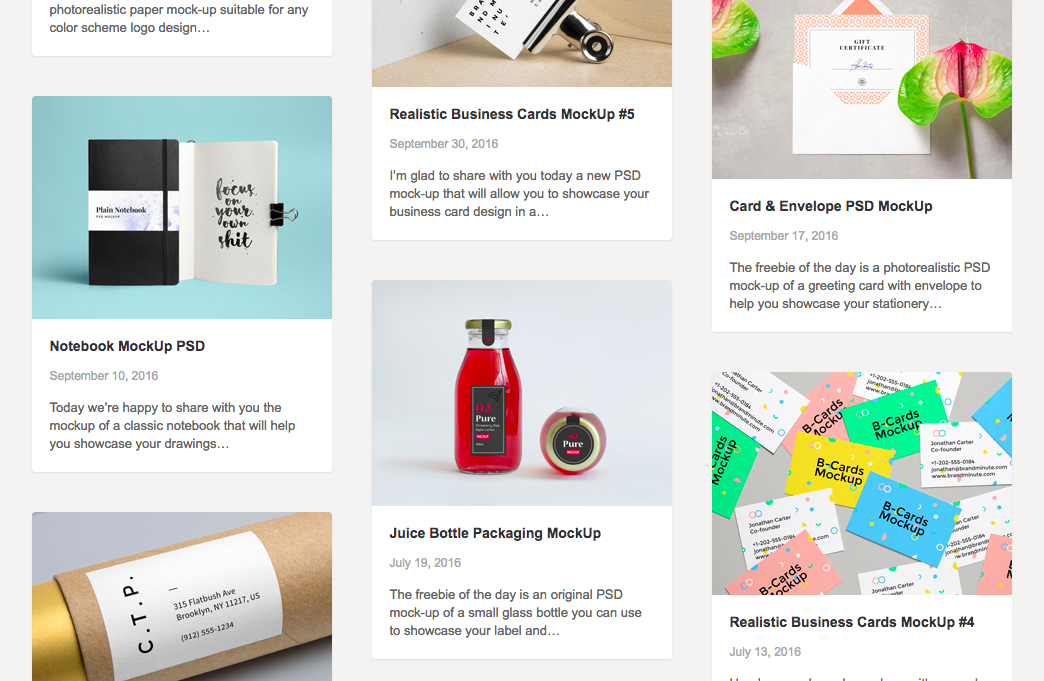
Free Mockup Designs

–

Creative Market Free Goods: If you create a free account with Creative Market, you are able to download their free weekly goods. Each week they have 6 different free to download products that you can use.
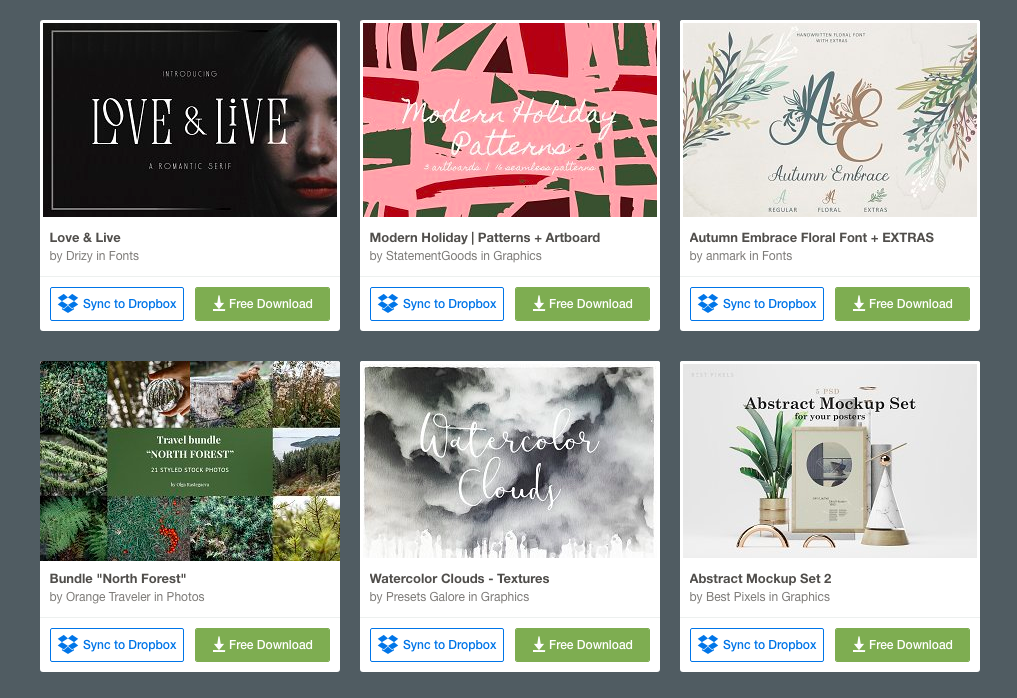
Free Graphic Designs Fonts Illustrations Download

–

Taking the Next Step

Once you have practiced and created graphics with the free resources, the next step is to upgrade to paid tools/resources. Because the paid ones let you do more, and tend to be better designed.

The good news is that today there are so many designers creating graphics and resources that are for sale. This means that it is cheaper than ever to buy them. Before, the only fonts that were available would cost $200-300++. Today you can get world class fonts for $17-$22.

And Creative Market is really the only place I go today to get any fonts, illustrations, or mockups that I need.

Here are some paid fonts that I use all of the time:

Santorini Signature Font ($17)
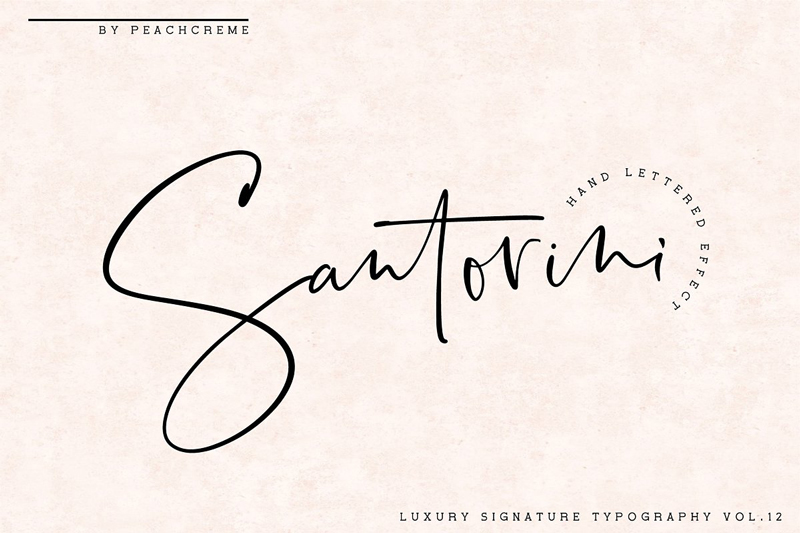
Santorini Luxury Signature Font

–

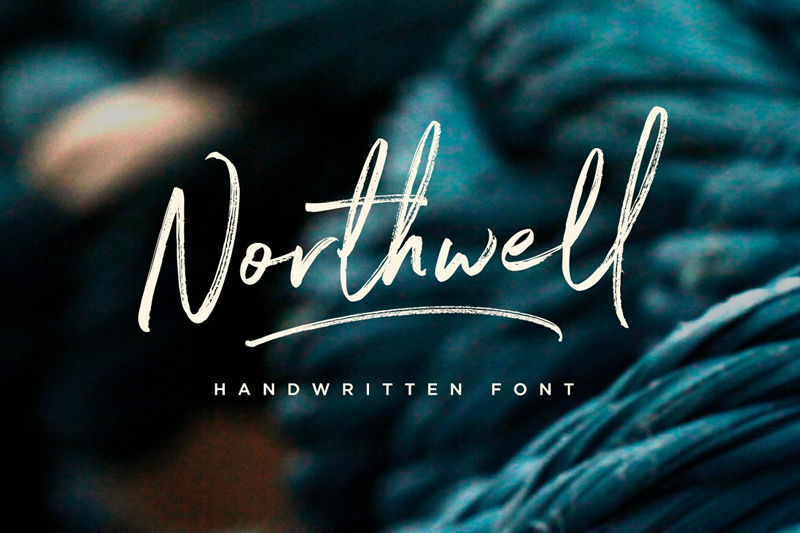
Northwell Brush Font ($16)

Northwell Brush Font

–

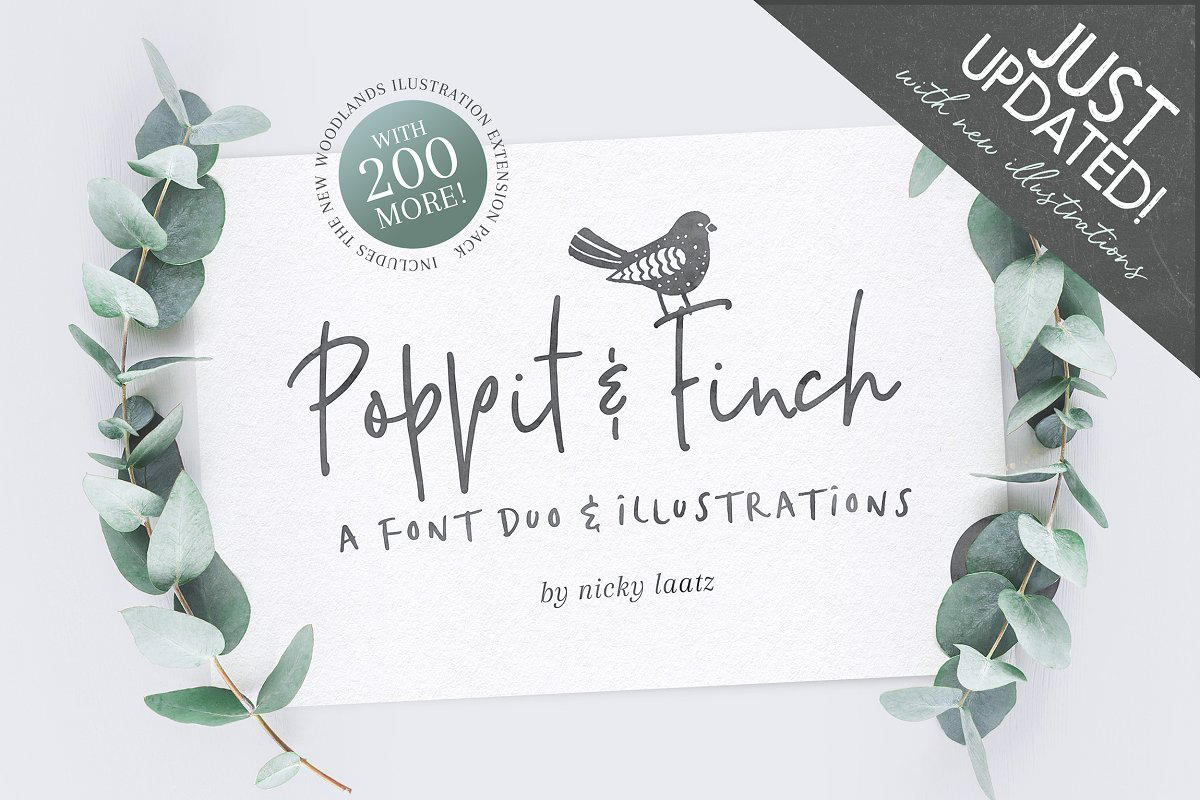
Poppit Finch Hand Drawn Font ($18)

Poppit And Finch Hand Drawn Font

–

Recommended Reading:

  • How To Learn Graphic Design – The First 3 Things To Learn for Beginners
  • What Makes A Good Logo Design
 

Topics: Graphic Design Tips

Quick Instagram Tips – A List of Best Things to Do When Posting

Topics: Social Media Marketing

Instagram Tips And Tricks

I am no expert when it comes to Instagram. My Instagram account is brand new (November 2018).

But this is a quick list of good things to do on Instagram that I have heard other people advise, and am practicing myself. This list should continue to grow as I start posting more.

  • Post a tall picture: It takes up more space on someone’s feed. And if you want to pin the image to Pinterest (rather than create a new JPG), taller images work a lot better. I used the same dimensions as a post I saw from Apple – 750px by 937px
  • Put your hashtag list in the comments: Versus putting them in the description/caption of the post. It just looks better, plus it adds a comment to your post.
  • Have your hashtags ready before posting: All of the popular hashtags such as #travel, #blogging, will have a lot of people posting to them. Which means your post wont stay at the top very long (in the recent section). Your post shows up in the hashtag feed based on when it was published – not when you post the hashtag in the comments. So if it takes you a few minutes to write all of your hashtags out in a comment, your post will show up further down in the feed (not at the top). So I write out all of my hashtags before posting, have it copied ready, and then as soon as I publish the post – I create a comment and paste the hashtags right away.
  • Use all 30 hashtags: You are allowed to use 30 hashtags to promote your post. Use them all.
  • Research what hashtags to use: Go to search in Instagram and type in something that you’d like to use as a hashtag – say #travel. You can see that it is a popular hashtag with over 300 million posts. This is good as you want to use popular tags that people will be looking at. But really popular tags will be hard to get seen for a beginner Instagramer. So it is also good to target smaller hashtags that are popular. When you type in ‘travel’ you can also see that – traveler – travel blogger – travellers – travelbook – travel blogger, are popular tags too. Try and think what topics your target market are looking at, and lookup those kinds of hashtags.


Topics: Social Media Marketing

How To Organize and Display Blog Posts – Creating a Blog Post Menu

Topics: Website Design

Blog Design Organizing Blog Posts Layout

If your blog, like many out there, has a lot of evergreen content – then you want to find a way to make sure those blog posts don’t get buried away and forgotten.

Evergreen Content – these are posts that are useful today and will be in the future. For example: how to’s, tutorials, travel guides, recipes, tips and advice. Versus content that is just about daily life.

It is easy for these posts to get buried away when you are publishing a lot. And most blogs are designed so a viewer has to scroll past the full blog post or excerpt to see what other posts are on the website.

Here are a few ways to organize and display your posts, and make sure they are not forgotten.

The way you choose to display your posts will come down to A) how many posts you have and B) what ways would your viewers want to filter your blog posts (for example this will be different for food blogs with recipes, than a travel blog with guides).

1. The List

This is the most basic and easy one to set up. Today on this website (November 2018), I created a list of my blog posts on the page Start Here – Topics. It is organized by topics, and in the order a viewer would go about starting and building their blog/business. Getting Started (blog posts on how to name your business, setting up a website, etc), Logo Design (blog posts on how to get a good logo design, using a premade logo, etc), Website Design, Social Media Marketing, etc.

It only took me a few minutes to create it. And is an easy way for people to quickly go through the different posts I have on the website.

If you have a travel blog – you could list topics by location, or by type of traveling (budget, train, boat) – or create more than one list if you think each list would help your readers.

If you had a food blog – you could list topics by breakfast, lunch or dinner. Or by styles of food (Asian, Italian, etc). Or by types of food (meals, baking, snacks, drinks). Or have multiple lists.

2. The Big List

If you have a lot of posts, you could create a page for each big topic – and list out your blog posts. Then in your sidebar you can link to each of these pages.

This is what I did with my home design website Home Tree Atlas.

I thought about how people would be searching for home design ideas:

  • Some people would be searching based on the room – bedroom, basement, kitchen, etc.
  • Some people would be searching based on style – vintage, modern, minimalist, etc.

For topics that I had a lot of posts (bedroom ideas, kitchen ideas), I create a page for each one. For posts that I did not have a lot of posts for (vintage style, modern style, rustic style), I grouped them together on one page under different headings.

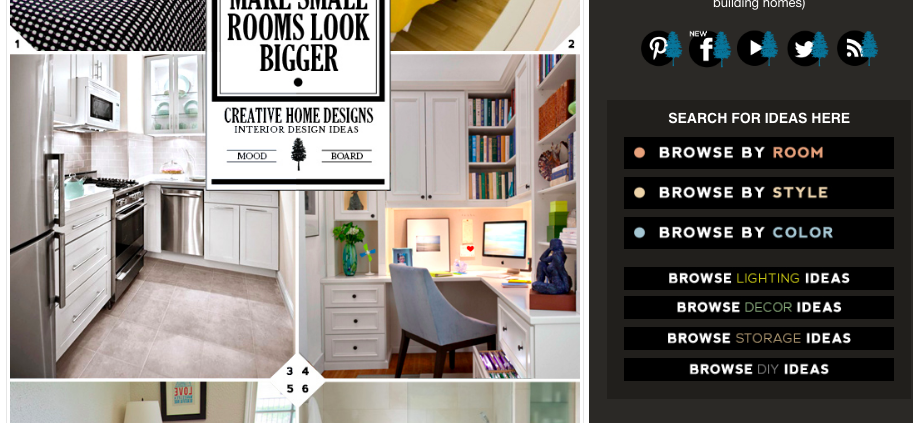
Menu Options

The sidebar links to different topic pages I created for easy access

–

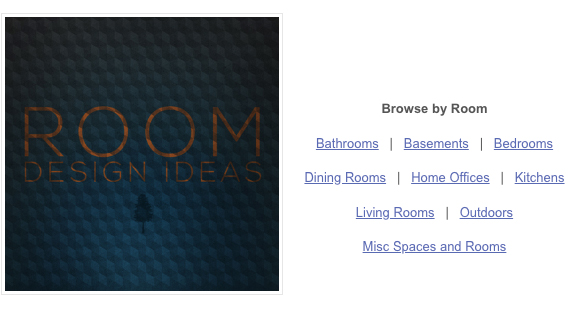
Rooms

Selecting ‘Browse by Rooms’ in the sidebar takes you to this sub menu to select which room

–

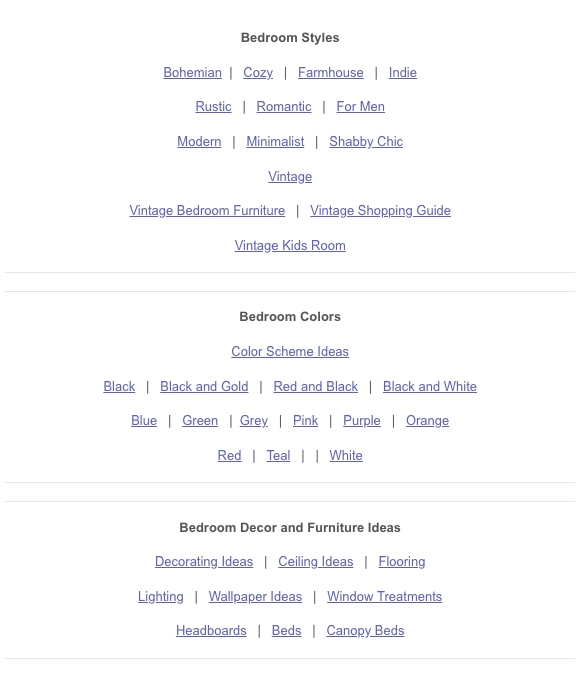
Bedroom Ideas

If you press on ‘Bedrooms’, you then go to a page with a list of all of my bedroom posts

–

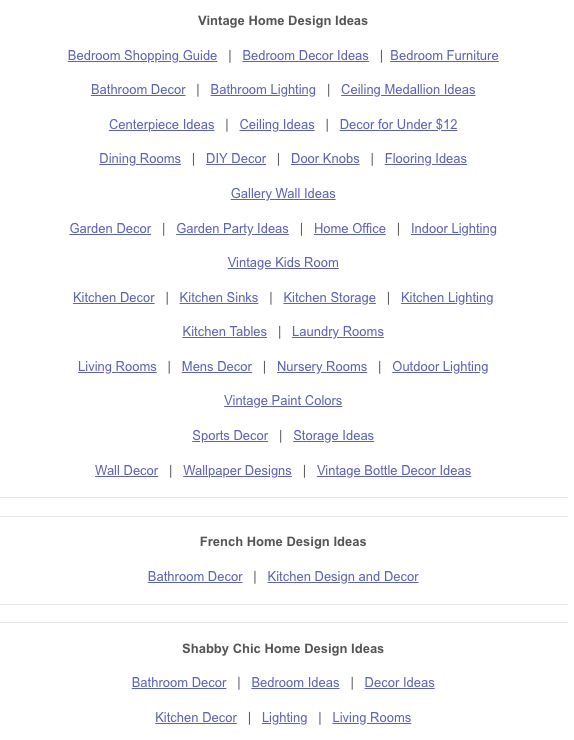
Blog Sidebar Design

Clicking on ‘Browse by Styles’ in the sidebar takes you to this one page with all of the different styles. Since I don’t have many posts for each one, I created just one page for this.

–

3. Adding Pictures

You can get fancy with how you organize and show your posts by adding a (small) picture.

Here are some examples of it being. First by NeedWant:

Blog Page Design

–

And here by Smart Passive Income:

Blog Posts Layout

–

The biggest challenge with trying to do this, if you are just starting out, is the coding required to make it look like one of those examples.

4. Blog Post Filtering Plugin

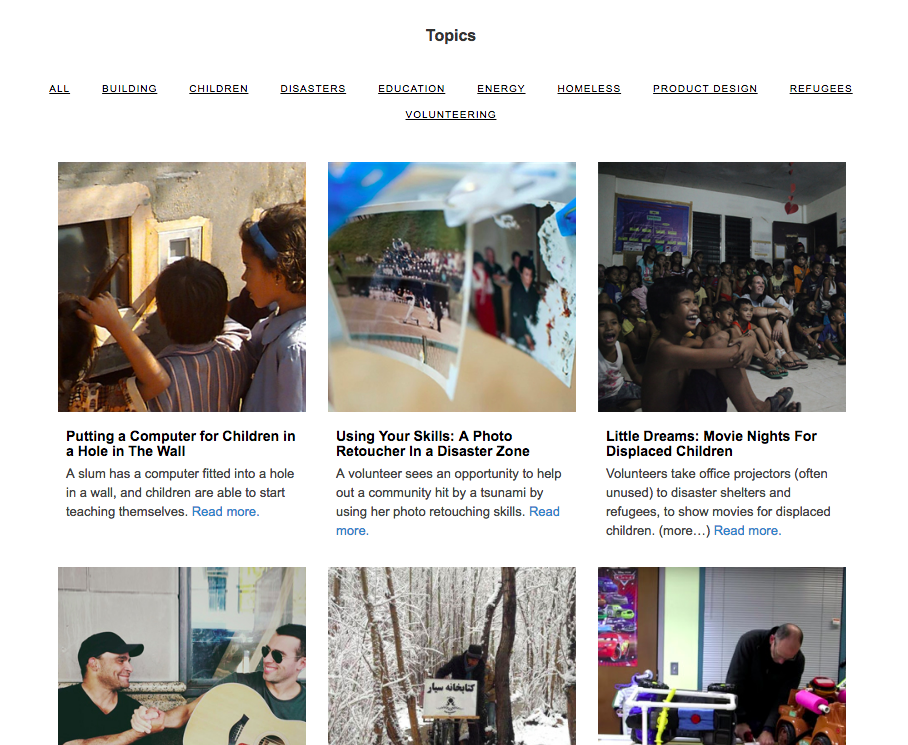
There are WordPress plugins that will automatically sort and show your posts when someone clicks on a topic.

You can see it in action on the Resonate Project website. By clicking on one of the topics, the posts will organize themselves and only show posts about that topic – instantly on the same page.

Blog Post Filter Grid

The plugin being used on the Resonate Project website is called Post Grid.

–

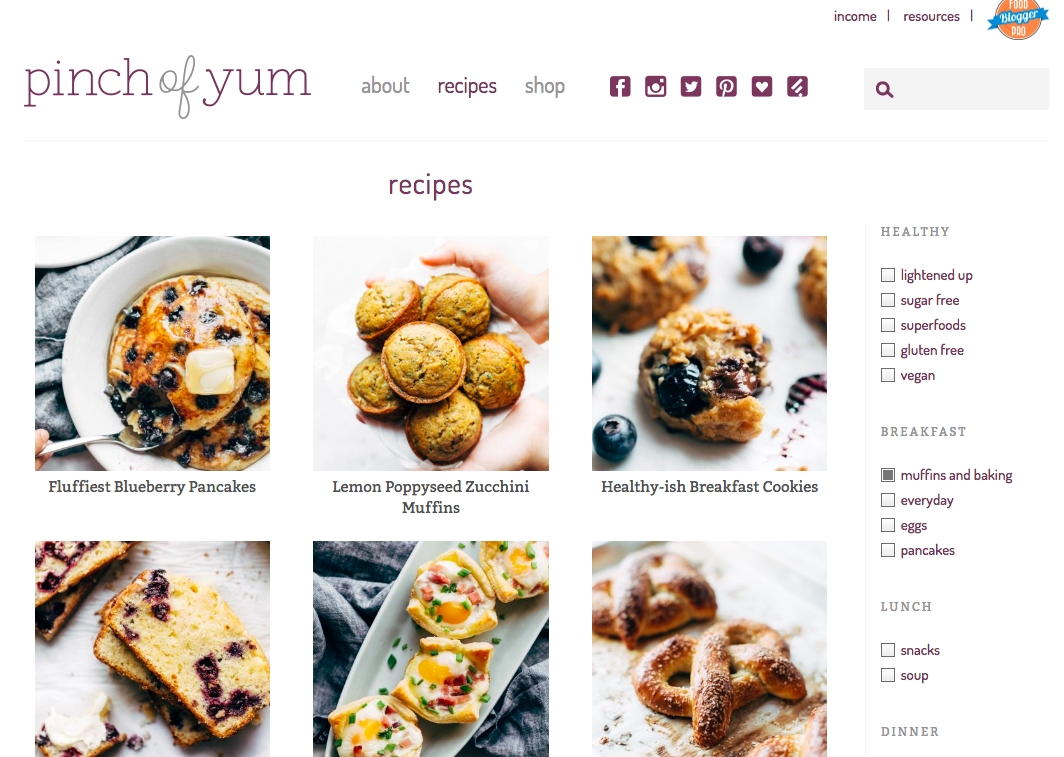
Another example of posts being filtered live, is on the Pinch of Yum‘s recipe page:

Blog Post Filtering

And the plugin being used is called FacetWP.

Post Grid is much cheaper at $19. And FacetWP is $99. But if you are planning on having a lot of blog posts, I would recommend looking at what Pinch of Yum has on their website with FacetWP. I have only used Post Grid, but only for a small number of posts.

5. A Few Other Ways

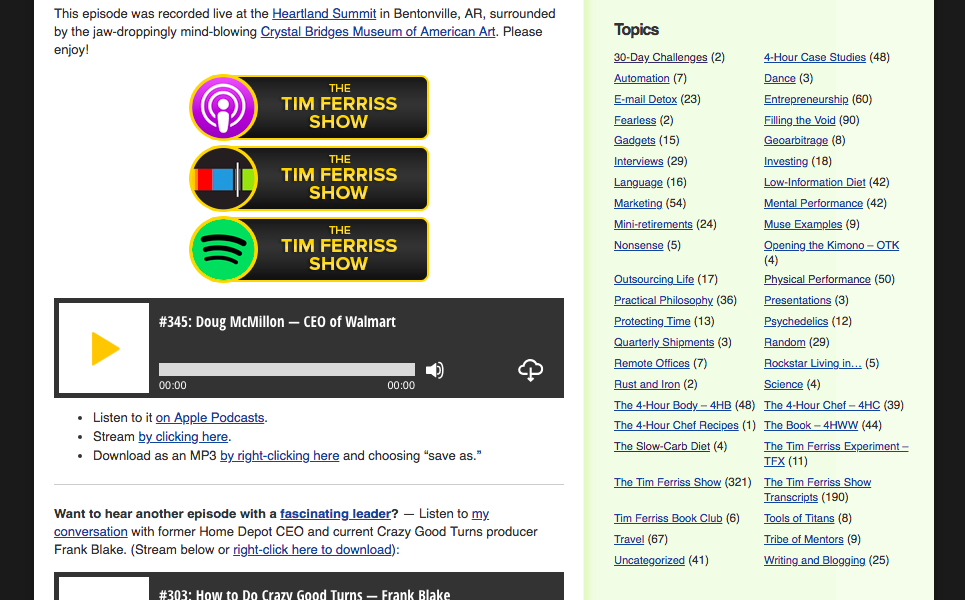
Tim Ferriss from the 4 Hour Work Week blog keeps a list of topics in the sidebar of his blog – which includes a count of how many posts are in each topic.

Blog Topics Lists

–

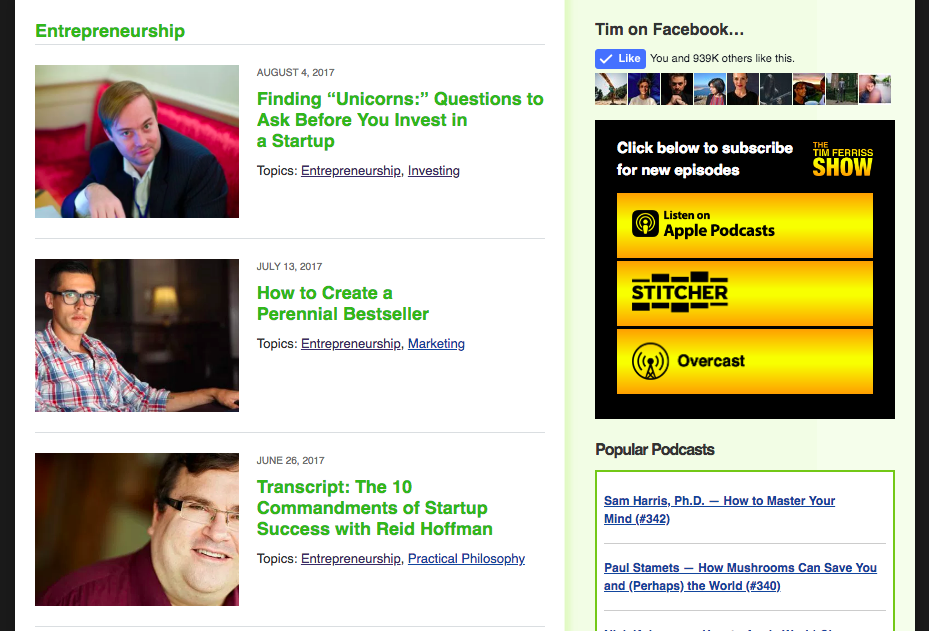
And when you click on each topic, you get taken to a page with all of the posts (with a small picture).

Blog Post Layout

–

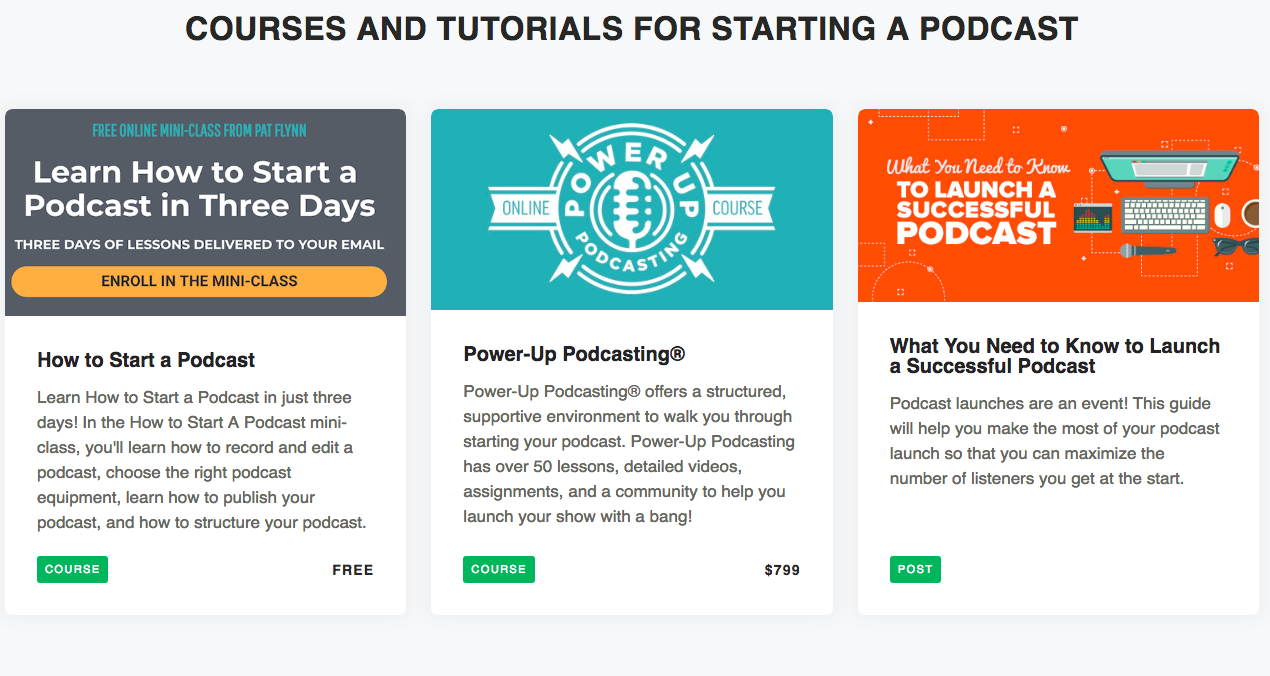
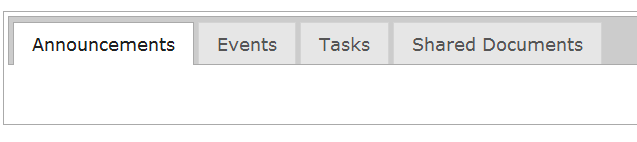
Tim use to have a tabs menu on his sidebar, which is gone now. It was something that looked a bit like this:

Sidebar Menu

And they had titles along the lines of ‘Popular Now’, ‘Most Popular’, ‘Tims Favorites’ ‘Most Useful’.

And when you clicked on the tabs, it would show you a list of 4-5 posts for each section. Which was a great and fast way to see what the blog was about and to access the best posts.

Recommended Reading:

  • Quick Instagram Tips – A List of Best Things to Do When Posting

Topics: Website Design

Reader Generation Logo Case Study: Ordering a Blog Custom Logo

Topics: Logo Design

Hand Drawn Custom Logo Designer

I have reached out to customers I have designed logo and branding for, and have asked them questions on the steps they took to order their custom logo. Since there are a few things that need to be thought out and done as you find your custom logo designer.

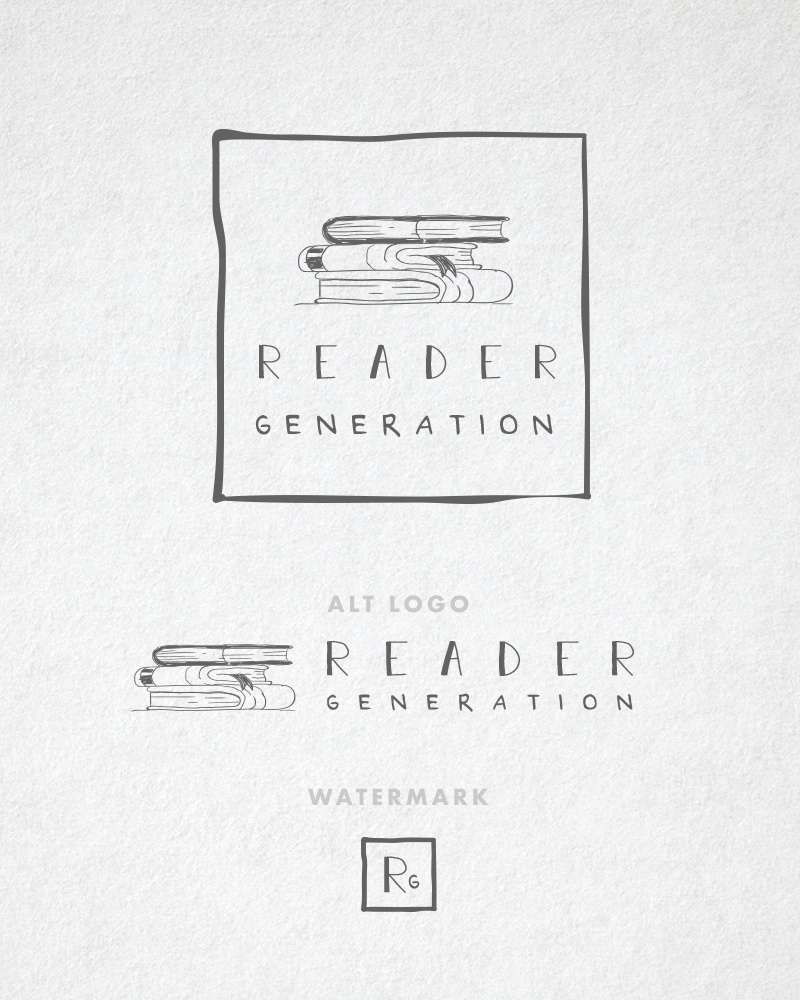
For this case study, we have Melanie from Reader Generation.

Hire Hand Drawn Custom Logo Designer

1. Where did you look to find your logo designer, and why did you choose the place that you did?

I didn’t know where to begin, so I turned to Etsy, since it is a world full of creatives and up-and-coming makers and designers.

2. What made you choose the designer that you did?

I searched custom logo design, and loved the style I found at Hatch. Quite a few of his logos caught my eye in the search results, and when I realized he also did custom work, I knew I’d found what I was looking for.

3. How did you know what you wanted designed, how did you know what style you wanted?

I looked within to define the style I was looking for. I wanted it to be “me” as well as accurately represent both the product I sell AND my heart behind my store and community.

4. What do you think is key to getting a logo design you are very happy with? Were there any mistakes you made?

I think open communication between designer and client is the key to satisfaction with the design. I provided some specific words associated with the style and design I was looking for, and didn’t hesitate to request tweaks when it was so “close” but not quite right. However, the designer is the expert, and I respected his counter-suggestions. The conversation between us was what yielded perfect results.

5. What advice would you give to others looking to have a custom logo designed?

Know what it is you are wanting to communicate with your logo and branding. It should be personal and fit not only your brand/voice but your persona as well. It should speak of who you are AND what you want to portray.


The best advice I can give anyone who is looking to get a custom logo design made, is to know what you want designed. I always ask people who want a custom logo from me, to send a few examples of logo designs they like.

I make sure that they are around a similar style. It makes it much easier for me to design their logo – and pictures are much better and clearer for explaining things when it comes to design work.

If you need a custom logo designer, you can view my page here for details and to message me. 


Recommended Reading:

  • Off Grid Living News Logo Case Study: Ordering a Custom Blog Logo
  • What Makes a Good Logo Design
  • Why Premade Logos Are Great For Beginner Bloggers

Topics: Logo Design

Getting it Right: What Makes a Good Logo Design

Topics: Logo Design

Good Logo Design Tips

If you are looking to get a logo designed, here are a few quick tips on what makes a good looking logo design – and what to avoid.

1. Number of Graphics

You don’t want to cram everything you can into your logo. Yes you want your logo to hint at what your blog or business is about. But it is not a poster, explaining everything you do.

If you want a graphic in your logo, not all logos need one though, then it should be one main graphic that is the focal point of the design.

2. Short Text

There is not much you can do if you have a long name. It is easier though to design a logo for a shorter blog/business name.

But what you do have control over is your subtitle. I get people who give me entire sentence length subtitles. A subtitle should describe what you do in 2 words, 3 if you have to. “Cajun Cooking”, “Beach Traveling”, “Spicy Indian Recipes”.

Not “My Travels and Adventures Around The World”, “Home Cooking For My Family”.

If you have a long subtitle, you will end up with a logo design that has a block of text. This block of text will take up more room than your name, and graphic if you have one. You’ll end up with a logo design that has little impact, and won’t be memorable.

Work with a great logo designer, and trust them to design

3. Premium Fonts

I tend to get people requesting a specific font to be used with their logo.

The font choice in a logo design is very important. It can be almost as much as 80% of the design itself. And the font you use can say a lot about who you are.

There is no reason why you have to be stuck with a specific font. And you should allow a good graphic designer to make this decision. As they will decide this based on a lot of factors – the layout of your logo design, whether it needs to be bold, or skinny, and a lot of other reasons.

Also, a good designer will have a collection of premium fonts they use for designs. So they will know best when it comes to font choice.

4. Proper Color Palette

If you want to use color in your logo, then trust your logo designer to select the right ones. A good designer will know what colors work together, they will also know that too many colors can make a logo design look cluttered and messy.

If you have specific colors in mind, then make a suggestion on broad colors: “pastels”, “bight neon”. Versus picking out specific colors.

5. 100%

A good logo design is a complete and unified design. Not a design that is a mash up of different parts.

I sometimes get people coming to me and asking if I can take their own design, and “fix it”. Or a logo design another designer created, and ask for it to be “fixed”. “Here is my sketch” “Please use this font” “But please add your own ideas”.

Sometimes there are people who ask to combine 2 or even 3 of the logo options I have created for them, into 1.

You know this is going to be a messy mashup of a logo. As always, find a great logo designer, and trust them to design the logo for you.

Recommended Reading

  • Why Premade Logos Are Great For Beginner Bloggers
  • How To Know Which Colors Work Best For Your Brand
  • How To Learn Graphic Design – The First 3 Things To Learn for Beginners

Topics: Logo Design

  • « Previous Page
  • Page 1
  • Page 2
  • Page 3
  • Next Page »

Primary Sidebar

About

Hatch Design Workshop is the place for bloggers to get graphic design tips about logos, website design, social media graphics, and much more. Est. June 2018.

Start Here – Blog Topics

My Shop

Topics

start your blog / website

blog website design

logo design

social media design

graphic design tips

youtube

© 2026 · Hatch Design Workshop